New! Assessment Manager
This page documents the pre-release version the Assessment Manager. It is for teachers who are at schools that subscribe to Problem-Attic and who would like to try the new options and provide feedback.
Please note that the Assessment Manager is an add-on to Problem-Attic and not automatically included in a school subscription. It is designed for common benchmark assessments (CBAs), final exams, and other tests which are administered by multiple teachers across multiple schools. For that reason, it assumes uniform licensing of Problem-Attic in a district. When all elementary and/or all secondary schools have a subscription, then the Assessment Manager gets activated.
(If a school subscribes to Problem-Attic apart from a district, there are still ways for teachers to administer tests to different classes and view results. They can use a feature called “virtual classes” on the Export and Score tabs. Instructions are here: www.problem-attic.com/help/export-tab/virtualclasses.)
Introductory Video
Here is a short video which introduces the Assessment Manager
Creating and Delivering an Assessment
Follow these steps to create a district-wide test, set a testing window (optional start and end times), and send test links to teachers.
Step 1. Create a test as normal in Problem-Attic.
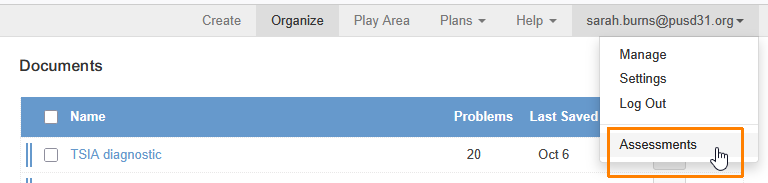
Step 2. Click your user ID (email address) at the top right. In the pop-up menu, choose the new option called “Assessments”.
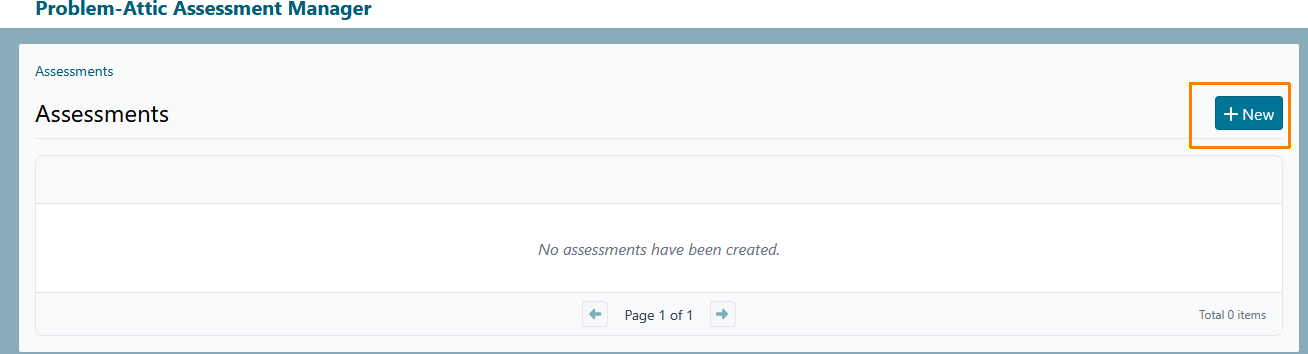
Step 3. At first the list of assessments will be empty. Click the New button.
Step 4a. In the following dialogue box, click the dropdown to select your document. You can also click the Browse button to locate your document.
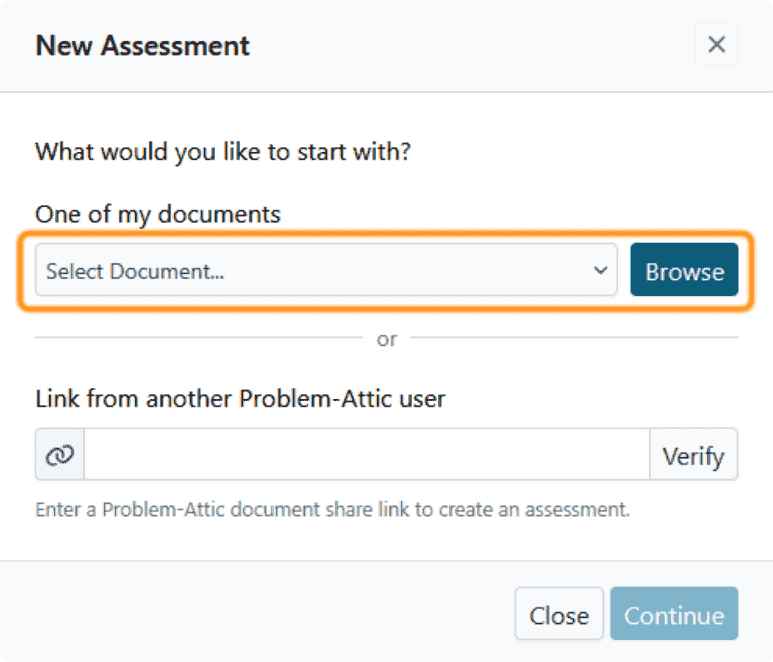
You can also paste-in a document share link from your documents or from another Problem-Attic user (the test does not have to be originally created in your account). Then click the Verify button to make sure the document is a legitimate Problem-Attic document.
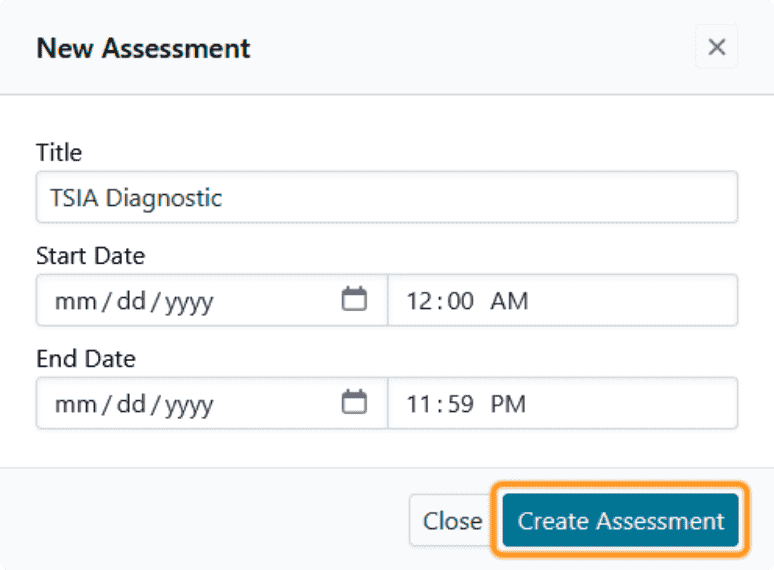
Step 5. Information will be filled in for the assessment. You can set an optional testing window (start and end date) in the dialog or do that later. To continue, click Create Assessment.
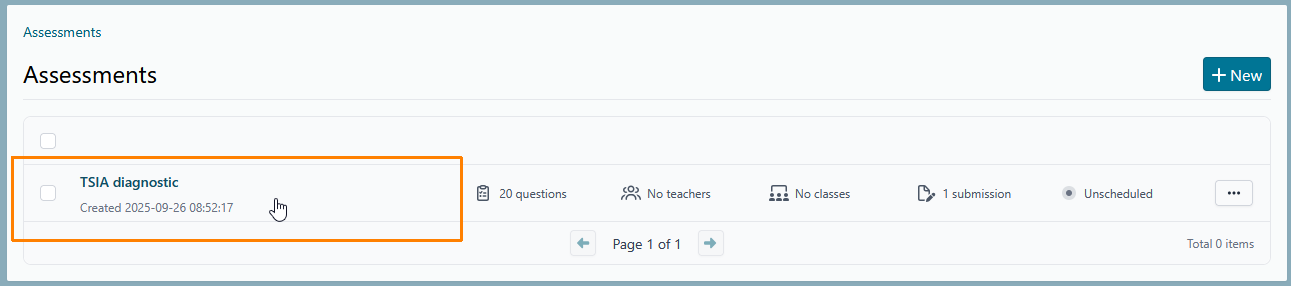
Step 6. You will see the new assessment in the list. Click anywhere on the row to continue. Or click the 3-dot button to the right and choose Settings from the menu.
Step 7. Currently, the Assessment Manager will use test settings from Problem-Attic. In the future, you will be able to override them here on the Settings page. For now the only options you may want to change are the start and end times. These restrict the testing window and can be left empty. As long as the Scoring switch is on, students can take the take the test and submit answers.
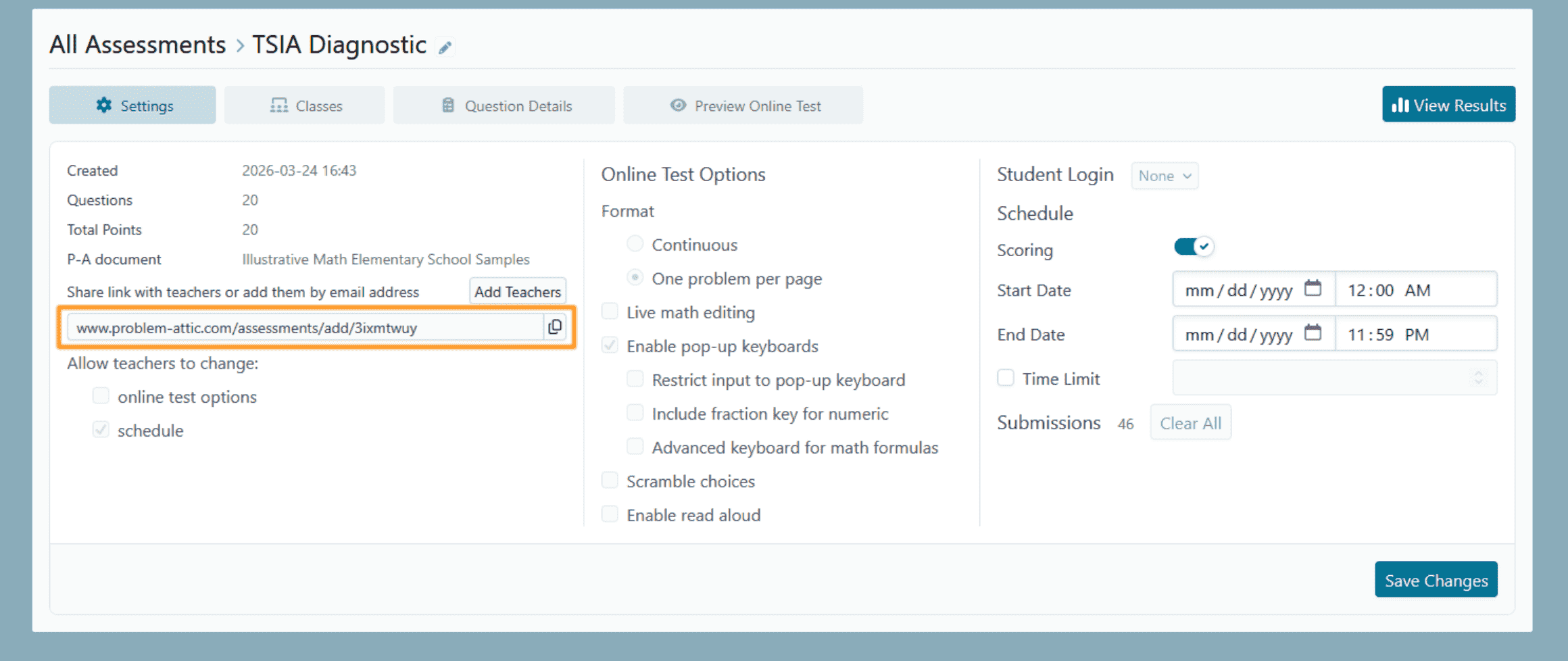
Step 8a. To distribute the test to the teachers meant to administer it, simply copy the test link and send it to the required teachers using your preferred school communication program.
Step 8b (alternative-method). You can also upload a list of teacher emails to add them as teachers who will administer the test. To do so, click the Add Teachers button.
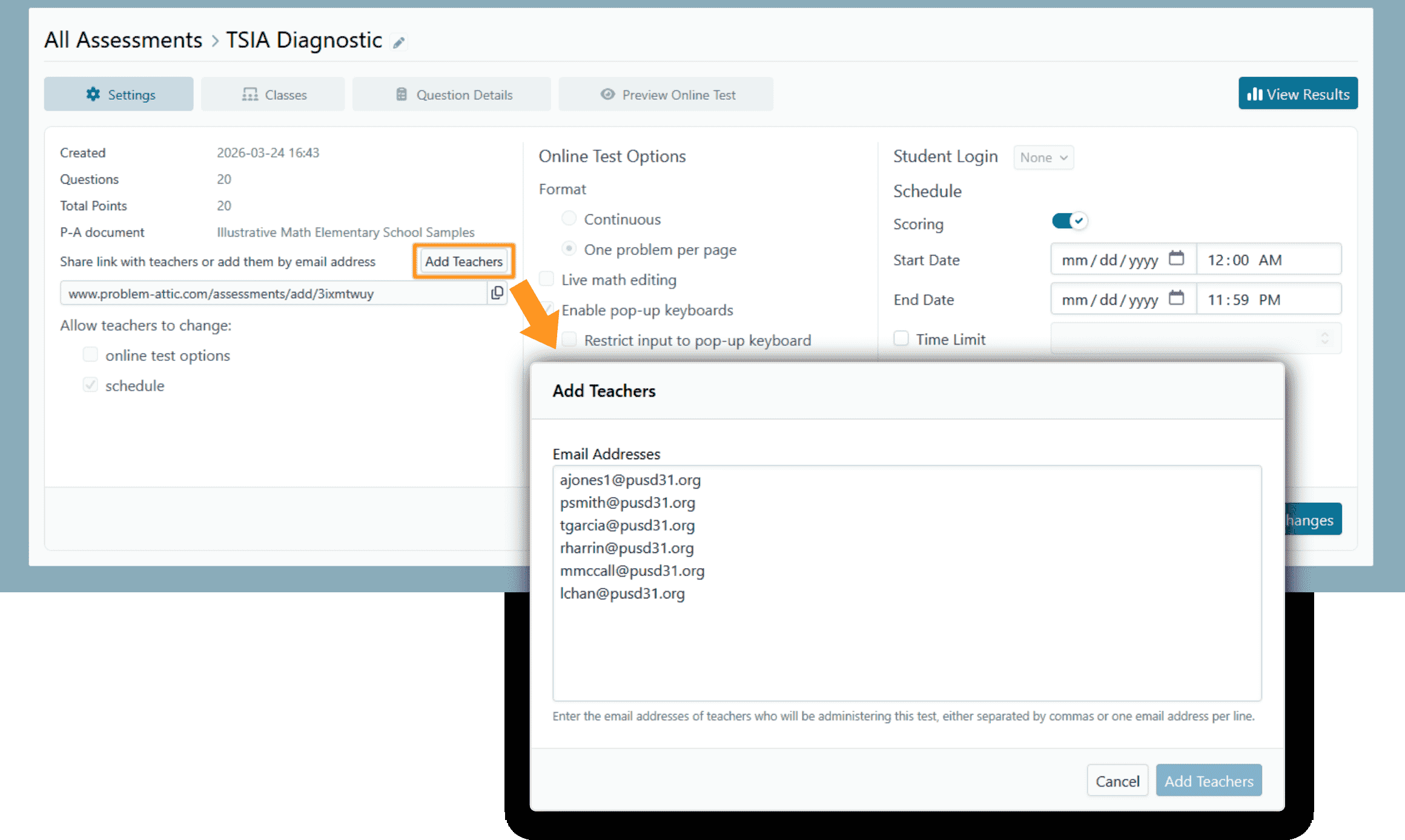
Step 8c. At first the list of teachers will be empty. You need to add addresses for those teachers who will be administering the test. You can paste many addresses at once separated by commas (or one per line). Click the Add Teachers button when done. The Assessment Manager will pre-authorize all of the teachers for the test and the test will automatically appear in their Assessments Page.
Important: all added teachers must be registered users of Problem-Attic and associated with your school district.
Step 9. Teachers are responsible for getting the test link to their students. They can do it in any number of ways, through Google or a Learning Management System (LMS), through their own email, or through any messaging system.
Step 10. Students click the link to take the test. They will need to log in (authenticate themselves) through the specified login software set for the test. When they are finished answering questions, they submit their test.
In short, test-taking is essentially the same as for any online test made by Problem-Attic. The main difference is that results will not appear on the Score tab in Problem-Attic. Instead, there is a new way to view results through the Assessment Manager.