The Format Tab
Problem-Attic offers a variety of formatting and layout options for your documents.
With your document open for editing, click the "Format" tab on the left side of the page. There will be a document template gallery at the top and a group of tabs with options below.
Template Gallery and Document Tab
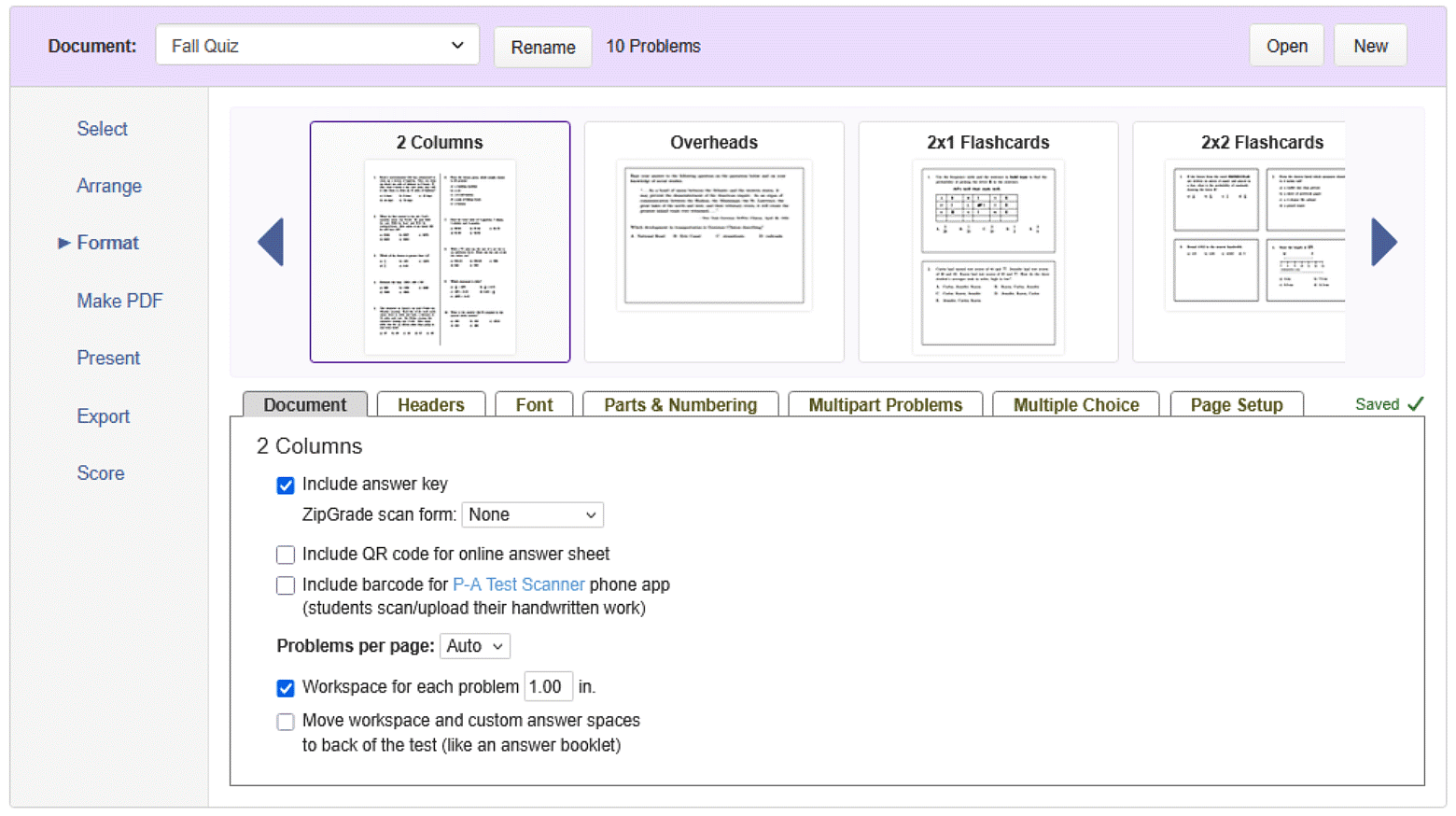
The Document Template Gallery lets you choose the overall layout of your document. Click on, or use the left and right arrows to select your desired template, then use the options in the Document tab below to control whether or not to:
- Print an answer key with your document.
- Show a QR code for use with the Scoring App. The Scoring App feature is available to Subscribers.
- Show a barcode for the P-A Test Scanner to check students' handwritten work via scan/upload.
- Limit the number of problems to be printed per page between 1–4 (for Tests and Worksheets).
- Add up to four inches of workspace after each problem for students to show their work (for Tests and Worksheets).
- Show problem numbers (for Overheads and Flashcards).
Headers
You can customize your document’s page headers on the Headers tab.
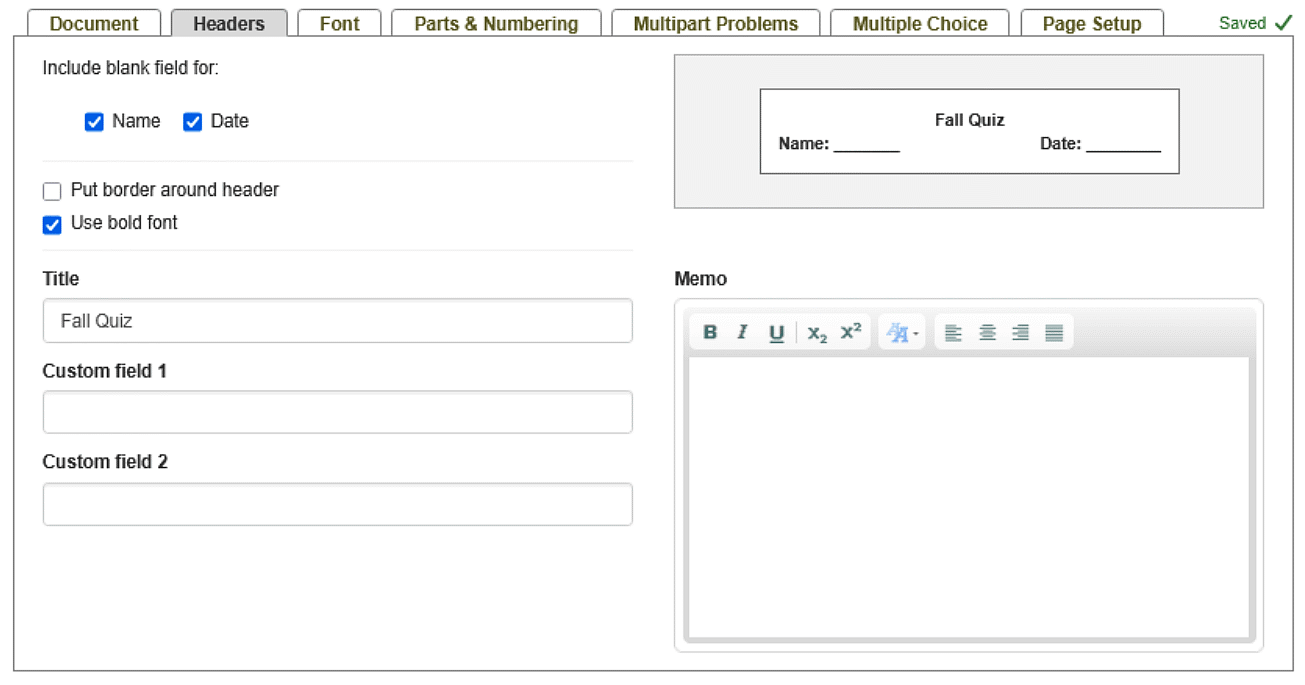
- Use the checkboxes to add blank fields for your students to fill in their names and the date.
- Use the Title field to display a different title than the default document name. The title will be printed at the top of the first page and on the bottom-right of additional pages.
- Use the custom field boxes to add your own blank fields or any useful information about the test (e.g., Class, Period, Teacher Name, etc). Both custom fields will be printed on the the top of the first page. The contents of Custom Field 1 will be printed on the bottom-left corner of additional pages.
- The memo field places a short amount of plain text below the first page header. Separate each paragraph with a blank line.
Note: Headers are only available for documents using a Test/Worksheet template.
Fonts
You can customize your document’s font type and size on the Fonts tab.
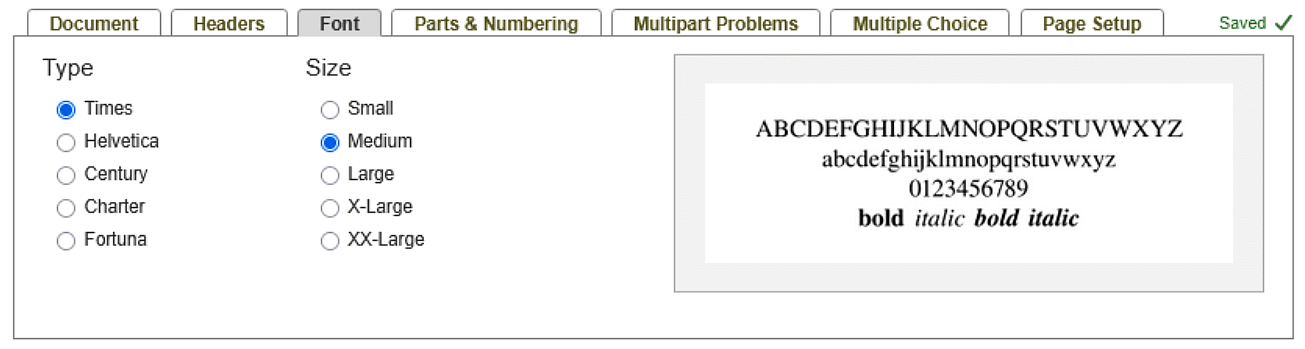
When selecting different font types and sizes, the sample text to the right will update based on your selections to give you a preview of what the text will look like.
Parts & Numbering
You can customize how each document part appears in your document on the Parts & Numbering tab. These parts are the groupings of problems you make on the Arrange tab.
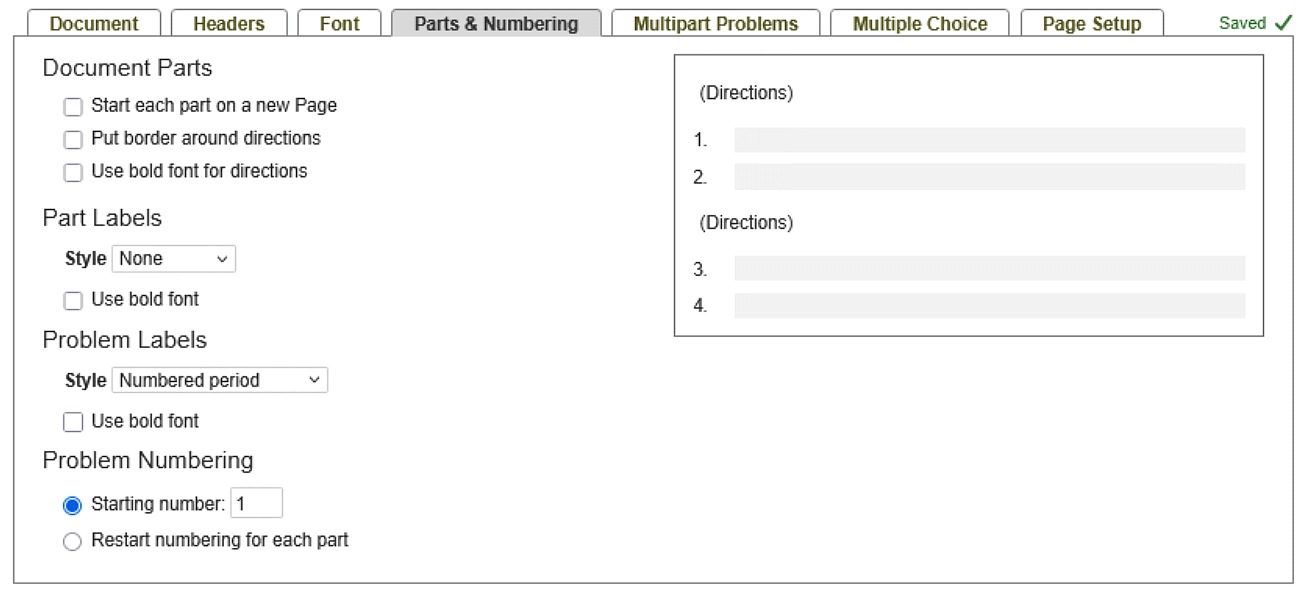
- Use the checkboxes to change whether or not each part starts a new page, put a border around the directions or use bold font for directions.
- Style the part labels in various ways using the Part Labels "Style" dropdown menu, and use bold font with the checkbox.
- Style the problem labels in various ways using the Problem Labels "Style" dropdown menu and also use bold font with the checkbox.
- Select a different starting number for the problems in the document or restart the numbering for each document part.
Multipart Problems
Customize how multipart problems appear in your document in the Multipart Problems tab.
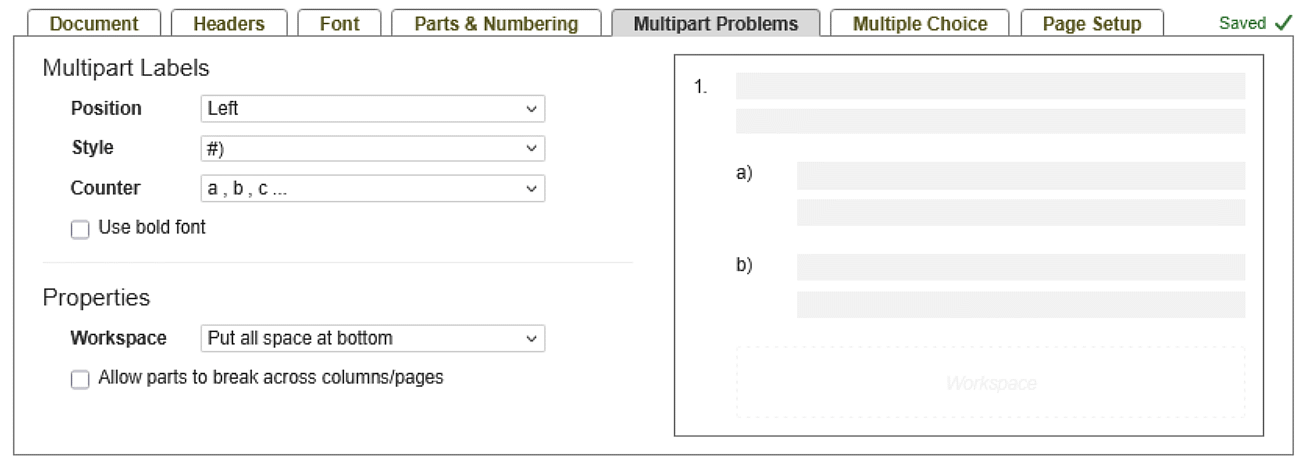
- Use the dropdown menus to change the position, style, counter, and font-weight of the Multipart Labels
- Use the Workspace dropdown menu to adjust how workspace for each part of the multipart problem appears.
- Use the checkbox to allow parts to break across columns and pages.
Multiple Choice
The Multiple Choice tab lets you change the way multiple choice options are presented in your document.
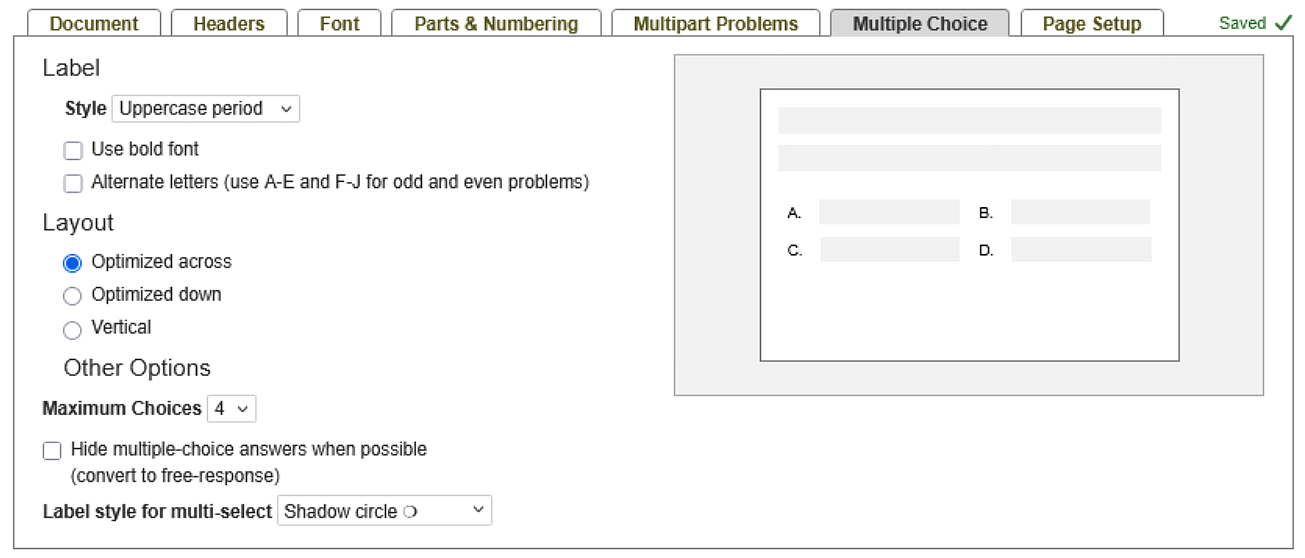
You can specify the response labels, choose the layout, change the number of responses, and convert multiple-choice to free-response for the whole document.
The Max Choices option sets a maximum for the number of choices that appear on a document. The default number of choices is set at 4.
Note: Raising the maximum number of choices will not increase the number of choices shown if they’re not already written into a problem. Additionally, choices are not ranked, so the hiding of choices is done in a pseudo-random fashion. The correct choice is never hidden. Lastly, some questions don’t make sense with their choices hidden. We’ve done our best to flag those questions to prevent them from being displayed as free-response. Please let us know if we have missed any.
Page Setup
The Page Setup tab allows you to choose the paper size and margins for your document.
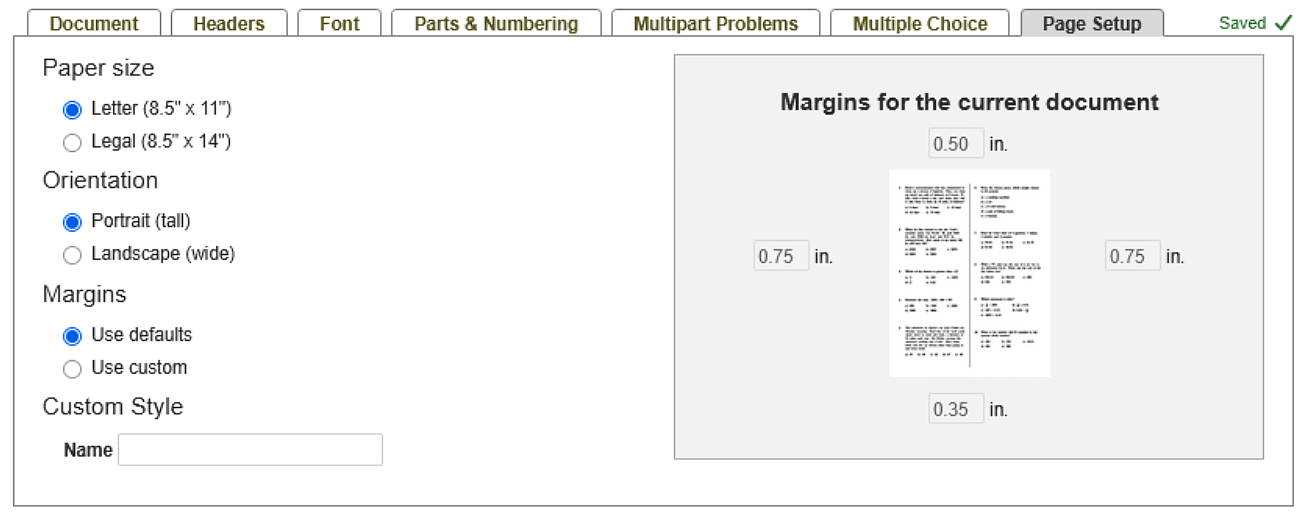
The “Restore Defaults” link sets the paper size back to Letter (8.5" x 11") and the margins back to 0.5" on the top, 0.35" on the bottom, and 0.75" on both the right and left.
Formatting Individual Problems
Individual problems can be formatted using the problem properties and custom answer spaces in Problem-Attic.