Clickable Objects - Table Cells
The example below is Problem 29 in “Interactive Questions (US History)”.
Thumbnail Preview
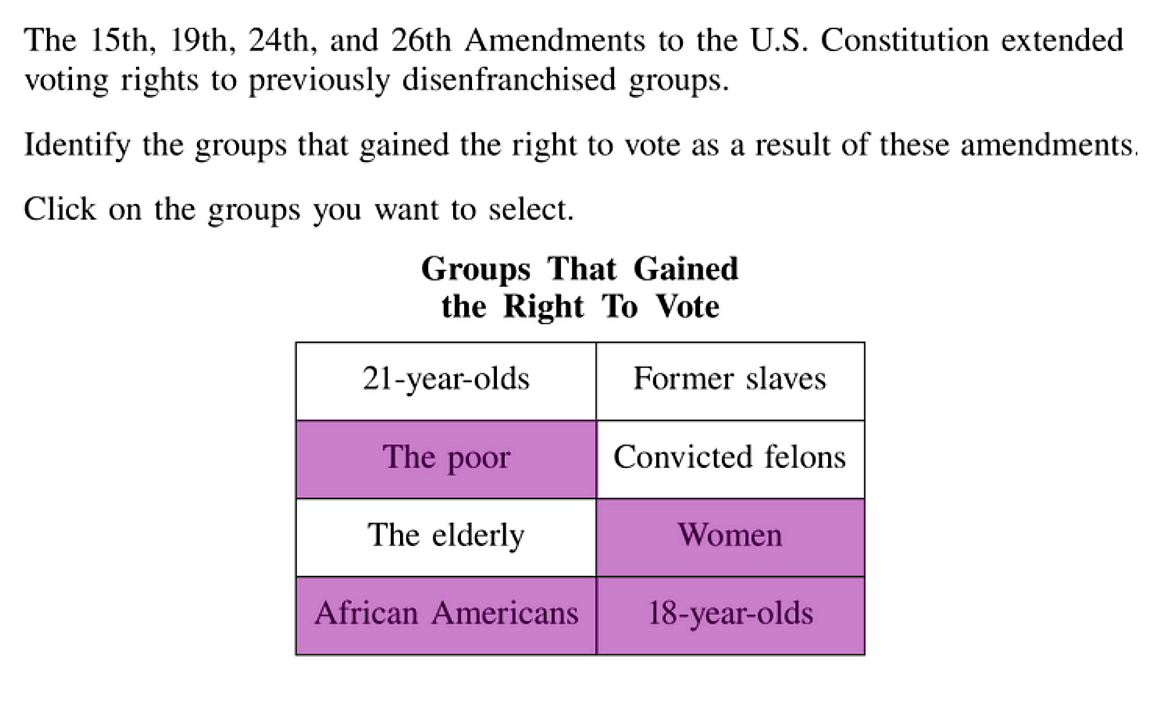
Example Video
Step-by-step instructions
To create the above question in Problem-Attic, follow these steps:
-
Go to the Arrange tab and click Write New Problem.
-
In the editor, type the question and press Enter to start a new line.
-
In the editor toolbar, click Table
-
In the Layout tab, enter the number of columns and rows you want (for this problem there will be 4 rows and 2 columns). In the Headers/Labels tab, check the box include Title (above).
Then click OK at the bottom of the dialog box.
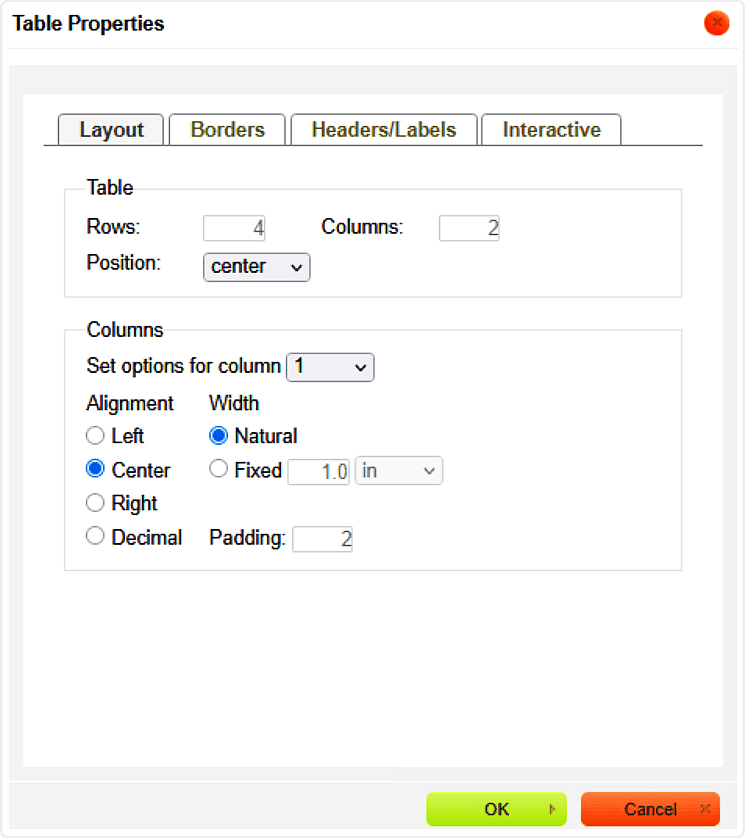
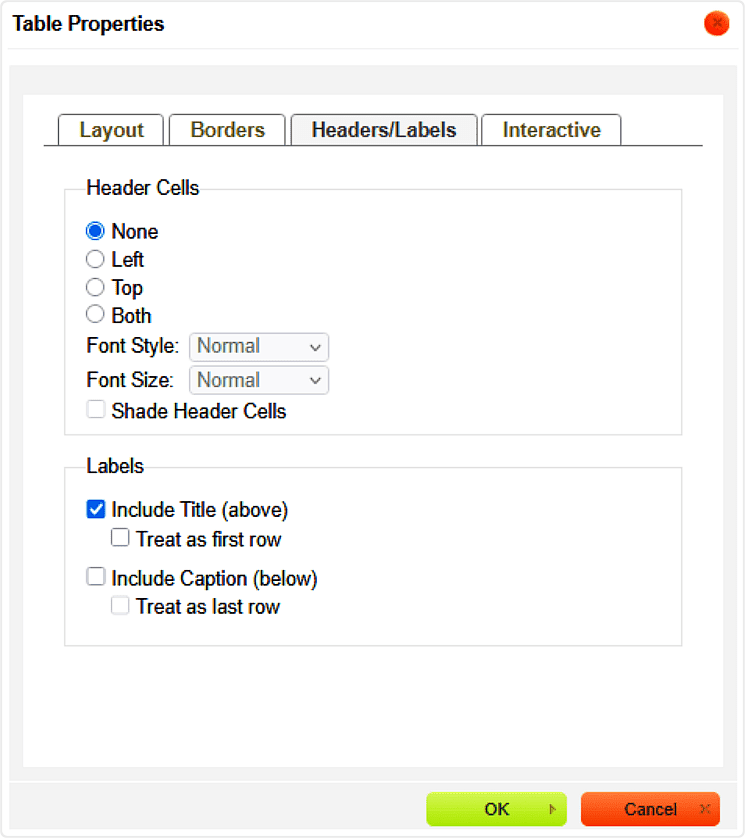
-
In the newly created table, fill in the title and cells with the correct text. Take note of which table cells are to be your answers.
-
To configure the answers, right-click anywhere in the table and select Table Properties... in the menu.
-
In the Interactive tab, select Clickable from the menu.
Under “Areas to make clickable” choose Cells, set the “Click Action” to Shading and set “Color” to Purple.
Finally, check the box for Multi-select and input the answers using spreadsheet-like references. Then Click OK at the bottom of the dialog box.
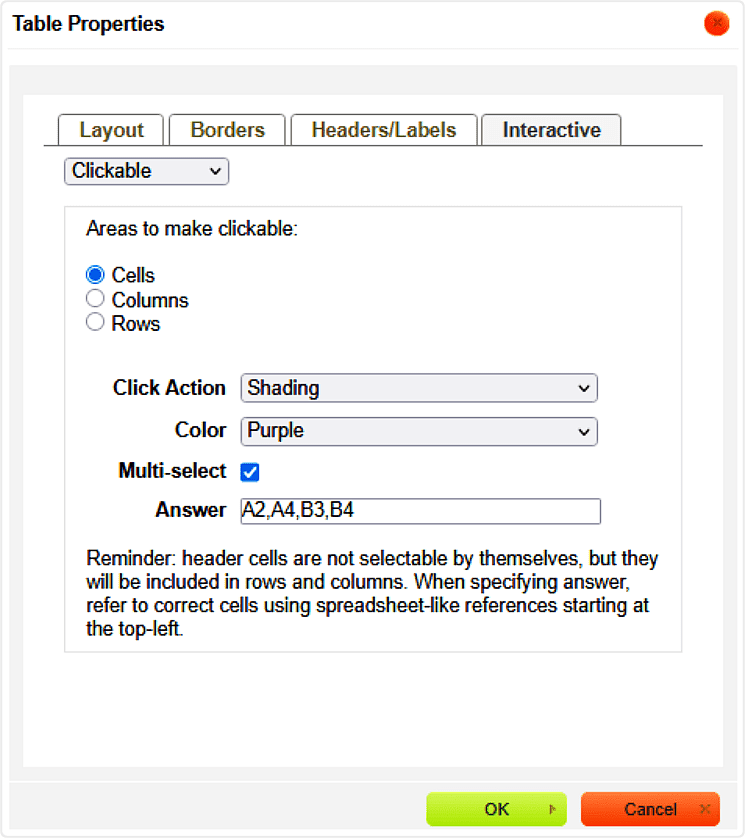
-
Click Online Test Preview to see how the clickable table cell question will look and behave in an online test. When you are done, close the Preview, then then click Save.